Search (Article Or Program)

21 February 2013

How to Send SMS Messages from C# using an SQL Database


Screenshot - sms-gateway-form.gif

Introduction

In this article, I give you an example of how you can send SMS messages to wireless devices from C# .NET. I assume, that you are familiar with Visual Studio 2003 or 2005 and the basics of databases and the SQL language. The solution described here is an in-house solution. To use it, you need a GSM Modem for sending SMS messages.

Background

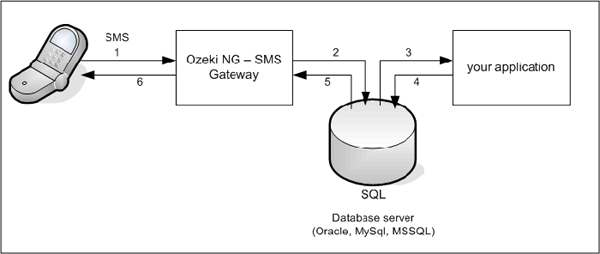
The system architecture used for SMS messaging consists of a GSM Modem, that is attached to the PC with a phone-to-PC datacable, an SQL-SMS Gateway software installed onto your PC, an SQL database server, such as SQL Express or Microsoft SQL and your SMS application (Figure 1). As you can see in the figure, your SMS application will create an SQL record in the database. The SMS gateway will poll this record using an SQLSELECT statement and will send it using a GSM modem.
Screenshot - sms-gateway-architecture.gif
Figure 1: In house SMS messaging / system architecture.

Preparing your Database Server

To get this architecture running, first you should prepare your database. This means that you should create two database tables. One will be used for sending SMS messages (ozekimessageout) and the other will be used for receiving SMS messages (ozekimessagein). The database table you create should contain a field for sender number, recipient number and message text. For sending messages, you also need a status field, that will indicate whether the message has been sent.
The recommended database table layout can be seen on Figure 2. Please note that you can add extra columns to this layout freely. After creating the database table layout, you should also create a username and a password that can be used to log into database.
create database ozeki
GO

use database ozeki
GO

CREATE TABLE ozekimessagein (
id int IDENTITY (1,1),
sender varchar(30),
receiver varchar(30),
msg varchar(160),
senttime varchar(100),
receivedtime varchar(100),
operator varchar(30),
msgtype varchar(30),
reference varchar(30),
);

CREATE TABLE ozekimessageout (
id int IDENTITY (1,1),
sender varchar(30),
receiver varchar(30),
msg varchar(160),
senttime varchar(100),
receivedtime varchar(100),
operator varchar(100),
msgtype varchar(30),
reference varchar(30),
status varchar(30),
errormsg varchar(250)
);
GO

sp_addLogin 'ozekiuser', 'ozekipass'
GO

sp_addsrvrolemember 'ozekiuser', 'sysadmin'
GO
Figure 2: Database table layout.

Configuring the SMS Gateway

Once the database has been setup, you should install and configure the SMS Gateway. The SMS Gateway we use in this article is the Ozeki NG - SMS Gateway. It can be downloaded from www.ozekisms.com. There are other similar SMS gateways available. We chose this SMS Gateway, because it is very reliable, easy to configure and it is based on .NET which means it integrates well into our architecture. In the SMS gateway, first you should configure the GSM modem attached to your PC. This can be done by adding a GSM Modem service provider connection. Detailed steps:
Step 1. Open http://127.0.0.1:9501 in Internet Explorer, login with admin/abc123.
Step 2. In the "Serviceprovider connections" menu, click on "Add service provider connection", then select "GSM Modem Connection" and click "Install".
Step 3. On the GSM modem configuration form, select the com port (usually COM1) and click on autodetect to configure your modem.
Step 4. In the "Users and applications" menu, click on "Add user", the select "Database user" and click on "install".
Step 5. For username, provide "sql1".
Step 6. For connection string, type select "OleDb" and for connection string enter:
Provider=SQLNCLI;Server=.\SQLEXPRESS;User ID=ozekiuser;password=ozekipass;
Database=ozeki;Persist Security Info=True
Step 7. In the configuration form, I suggest you to turn on SQL logging. You can do this by enabling the checkboxes:
"Log SQL SELECT statements" and "Log SQL UPDATE statements"
Screenshot - sms-gateway-config.gif
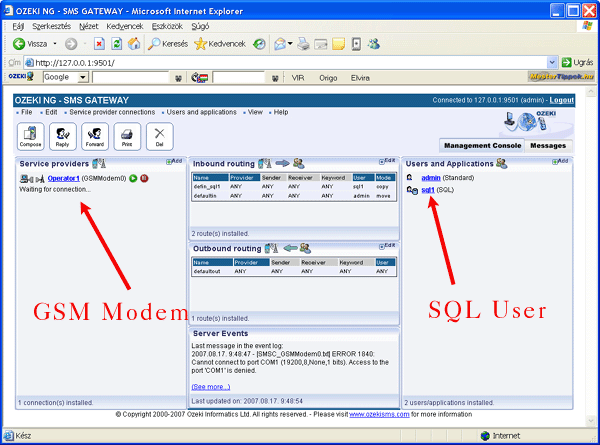
Figure 3: SMS Gateway configured.
After these steps, you have configured the SMS Gateway to forward your messages from the database to the mobile devices.

Using the Code

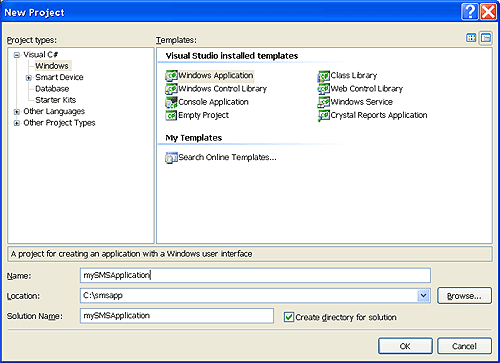
Once the database has been prepared and the SMS Gateway has been setup, you can use Visual Studio .NET to create your SMS application. In Visual Studio, create a new project of "Windows Application" type (Figure 4). This application will provide a GUI for sending the SMS message. It will connect to the database server and will insert a new record when a message is sent to a mobile phone.
Screenshot - sms-gateway-application-create.gif
Figure 4: Application type: Windows Application.
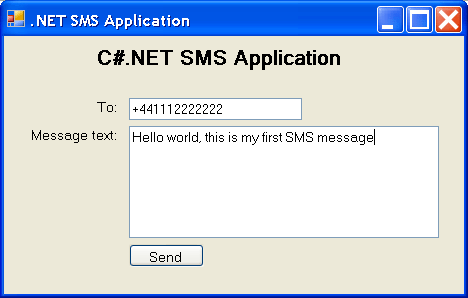
In this application, you should have a form that can be used by the user of your app to compose the message (Figure 5). This form should contain a field for the recipient number and another field for the message text. The form will have a button, that will initiate the sending process.
Screenshot - sms-gateway-form.gif
Figure 5: SMS Message form.
To be able to connect to your database server, you should include the "using System.Data.OleDb;" directive in the using section for your code. The code for sending the SMS message is written into the event handler of the button. In this code, first we connect to the database using an OleDbConnection object. For the connection, we use a standard connection string. If the connection is successful (the
state equals ConnectionState.Open), we execute our SQL INSERT statement to insert the SMS message. To achieve this, we compose the SQL statement and we use an OleDbCommand object to execute it (Figure 6):
private void button1_Click(object sender, EventArgs e)
{
    try
    {
    //Connect to the database
    OleDbConnection conn = new OleDbConnection();

    conn.ConnectionString = "Provider=SQLNCLI;Server=.\\;"+
"User ID=ozekiuser;password=ozekipass;Database=ozeki;Persist Security Info=True";
    conn.Open();
    if (conn.State == ConnectionState.Open)
    {
        //Send the message
        OleDbCommand cmd = new OleDbCommand();
        cmd.Connection = conn;
        string SQLInsert = 
        "INSERT INTO "+
        "ozekimessageout (receiver,msg,status) "+
        "VALUES "+
        "('"+tbSender.Text+"','"+tbMsg.Text+"','send')";
        cmd.CommandText = SQLInsert;
        cmd.ExecuteNonQuery();
        MessageBox.Show("Message sent");
    }

    //Disconnect from the database
    conn.Close();
    }
    catch (Exception ex)
    {
    MessageBox.Show(ex.Message);
    }

}

Verifying Your SMS Application

After executing the application, you can send your first SMS message. To track the message, you can use a SQL console to see what is inserted into your SQL table and you should examine the event log of the SMS gateway to see the SQL events. The eventlog of the Ozeki NG SMS gateway is located at the following location:
C:\Program Files\Ozeki\OzekiNG - SMS Gateway\Logs 

References

Good luck
!


By , 17 Aug 2007

20 February 2013

10 Common C# Interview Question and Answer


1). What is C#?
C# [pronounced as "C sharp"] is a simple, modern, object-oriented, and type-safe programming language.
2). What are the basic concepts of object oriented programming?
It is necessary to understand some of the concepts used extensively in object oriented programming.These include Objects, Classes, Data abstraction and encapsulation, Inheritance,Polymorphism.
3). Can you inherit multiple interfaces?
Yes , In Dotnet C# Multiple Inheritence is not allowed so instead of we can use Interfaces which are inheritable.
4). What is Garbage collection?
The .NET Framework’s garbage collector manages the allocation and release of memory for your application.
5).Where are all .NET Collection classes located?
System.Collection namespace has all the collection classes available in .NET.
6). What is boxing and unboxing?
Implicit conversion of value type to reference type of a variable is known as BOXING, for example integer to object type conversion.  Conversion of reference type variable back to value type is called as UnBoxing.
7). What are the types of arrays in C#?
Single-Dimensional, Multidimensional, Jagged arrays.
8). What is the difference between Object and Instance?
An Instance of a user-defined type is called an object. We can instantiate many objects from one class. An object is an instance of a class.
9).Define Constructors?
A constructor is a member function with the same name as its class.
The constructor is invoked whenever an object of its associated class is created. It is called constructor because it constructs the values of data members of the class.
10).What is encapsulation?
The wrapping up of data and functions into a single unit (called class) is known as encapsulation. Encapsulation containing and hiding information about an object, such as internal data structures and code.

19 February 2013

Remove Skype Chat History for Single Contact


By , 18 Feb 2013


Introduction

I wanted to clear the Skype chat history for a single user, but Skype only allows you to clear the complete chat history, not a single user's contact history.
I searched for 3rd party tools on the net but nothing worked for me on Windows 7 / Skype 4.1
At the beginning, I knew nothing about how Skype stored chat history and just entered my username and password to login and chat with friends.
After spending a few hours asking Google many questions, I found that Skype was using the following SQLite database to store its messages.
System Drive:\/Skype//main.db
I tried to read it with SQLitespy, but it was a pain to find and clear messages each time. Then, decided to develop a small C# utility to clear a single contact chat history.

Using the Code

First of all, I had to find a method to deal with an SQLite database file using C#. This is where theSystem.Data.SQLite plays a role in my application. You may download it fromhttp://sqlite.phxsoftware.com/
Reference System.Data.SQLite.dll (Located in C:\Program Files\SQLite.NET\bin\System.Data.SQLite.dll) to allow C# to deal with the SQLite database file.
Once I knew I was going to dirty my hands with development, I wanted to find the Skype username(s) to reach to the database file. In System Drive:\/Skype/ folder, Other than Skype user folder(s), there are 3 folders that Skype use for its operations, “Content”, “My Skype received files” and “Pictures”. I wrote codes to read subfolders and filter-out those 3 Skype standard folders.
String sDirName = Environment.GetEnvironmentVariable("APPDATA") + @"\Skype";
String [] folders = Directory.GetDirectories(sDirName);
String[] names = new String[folders.Length-3];

            foreach (String fname in folders){
                String folder = fname.Replace(Environment.GetEnvironmentVariable("APPDATA") +
                    @"\Skype\", "");
                if (folder != "Content" && folder != "My Skype Received Files" && 
                    folder != "Pictures")
                {
                     usernamecb.Items.Add(folder);
                }
            }
The Usernamecb variable will be used to populate the dropdown box in the UI.
Based on the selected username we can reach the Skype message database (main.db) and read chat participants. Chat messages are stored in the "Messages" table.
The following code reads the database and fetches chat participnts (Contacts) who has messages in it.
database = Environment.GetEnvironmentVariable("APPDATA") + @"\Skype\" + SkypeUserName + 
    @"\main.db";
SQLiteConnection sqlite = new SQLiteConnection("data source=" + database);
SQLiteDataAdapter ad;
DataTable dt = new DataTable();

SQLiteCommand cmd;

sqlite.Open();

cmd = sqlite.CreateCommand();
cmd.CommandText = "select DISTINCT dialog_partner from Messages";
ad = new SQLiteDataAdapter(cmd);
ad.Fill(dt); //execute command
participants.DataSource = dt;
participants.ValueMember = "dialog_partner";
Where participants is a dropdown box in UI that displays chat participants.
When the user selects the participant from the dropdown box, the following SQL command deletes all messages for a selected participant from the database.
cmd = sqlite.CreateCommand();
cmd.CommandText = "delete from Messages Where dialog_partner = '" + participant + "'";
ad = new SQLiteDataAdapter(cmd);
ad.Fill(dt); //execute command
Then I realized that the database file is been locked while Skype is running. Therefore, I added code to terminate the Skype process when the program starts running, and starts up Skype again when the program closes.
// Terminate Skype
foreach (Process p in Process.GetProcesses(Environment.MachineName))
            {
                if (p.ProcessName.Equals("Skype"))
                {
                    p.Kill();
                }
          }
 
//Start Skype when the programe is exiting
private void Form1_FormClosing(object sender, FormClosingEventArgs e)
{
            // open Skype again
            String program = Environment.GetEnvironmentVariable("ProgramFiles");
            try
            {

                System.Diagnostics.ProcessStartInfo psi =
                new System.Diagnostics.ProcessStartInfo(program + @"\Skype\Phone\Skype.exe");
                System.Diagnostics.Process.Start(psi);
            }
            catch (Exception ex){}
  }
When all the code comes together, it is a nice and painless tool for clearing a single user's chat history.

Revision (2013/02/18) 


1. Updated utility to working with Skype 5.1 and later folder structure while searching skype user accounts

2. Application will automatically remove conversation from recent conversation tab

3. Published setup files for both 32bit and 64 systems 

18 February 2013

YouTube Downloader Using C# .NET


Thanks again to CircleDock the Downloader works better.

Introduction 

This article shows how to download YouTube videos using C# code only. The code is very simple to understand and anyone can easily integrate it to in their solution or project.
I didn't use any third party library to do this task. All you need is to take two .cs files and integrate them to your project.

Using the code

There are two main classes in this project:

YouTubeVideoQuality Class

This is the entity that describes the video.
public class YouTubeVideoQuality 
{
    /// <summary>
    /// Gets or Sets the file name
    /// </summary>
    public string VideoTitle { get; set; }
    /// <summary>
    /// Gets or Sets the file extention
    /// </summary>
    public string Extention { get; set; }
    /// <summary>
    /// Gets or Sets the file url
    /// </summary>
    public string DownloadUrl { get; set; }
    /// <summary>
    /// Gets or Sets the youtube video url
    /// </summary>
    public string VideoUrl { get; set; }
    /// <summary>
    /// Gets or Sets the file size
    /// </summary>
    public Size Dimension { get; set; }

    public override string ToString()
    {
        return Extention + " File " + Dimension.Width + 
                           "x" + Dimension.Height;
    }

    public void SetQuality(string Extention, Size Dimension)
    {
        this.Extention = Extention;
        this.Dimension = Dimension;
    }
}

YouTubeDownloader Class

This class downloads YouTube videos:
public class YouTubeDownloader
{
    public static List GetYouTubeVideoUrls(params string[] VideoUrls)
    {
        List urls = new List();
        foreach (var VideoUrl in VideoUrls)
        {
            string html = Helper.DownloadWebPage(VideoUrl);
            string title = GetTitle(html);
            foreach (var videoLink in ExtractUrls(html))
            {
                YouTubeVideoQuality q = new YouTubeVideoQuality();
                q.VideoUrl = VideoUrl;
                q.VideoTitle = title;
                q.DownloadUrl = videoLink + "&title=" + title;
                if (getQuality(q))
                    urls.Add(q);
            }
        }
        return urls;
    }

    private static string GetTitle(string RssDoc)
    {
        string str14 = Helper.GetTxtBtwn(RssDoc, "'VIDEO_TITLE': '", "'", 0);
        if (str14 == "") str14 = Helper.GetTxtBtwn(RssDoc, "\"title\" content=\"", "\"", 0);
        if (str14 == "") str14 = Helper.GetTxtBtwn(RssDoc, "&title=", "&", 0);
        str14 = str14.Replace(@"\", "").Replace("'", "'").Replace(
                "\"", """).Replace("<", "<").Replace(
                ">", ">").Replace("+", " ");
        return str14;
    }


    private static List<string> ExtractUrls(string html)
    {
        html = Uri.UnescapeDataString(Regex.Match(html, "url_encoded_fmt_stream_map=(.+?)&", 
                                      RegexOptions.Singleline).Groups[1].ToString());
        MatchCollection matchs = Regex.Matches(html, 
          "url=(.+?)&quality=(.+?)&fallback_host=(.+?)&type=(.+?)&itag=(.+?),", 
          RegexOptions.Singleline);
        bool firstTry = matchs.Count > 0;
        if (!firstTry)
            matchs = Regex.Matches(html, 
                     "itag=(.+?)&url=(.+?)&type=(.+?)&fallback_host=(.+?)&sig=(.+?)&quality=(.+?),{0,1}", 
                     RegexOptions.Singleline);
        List<string> urls = new List<string>();
        foreach (Match match in matchs)
        {
            if (firstTry)
                urls.Add(Uri.UnescapeDataString(match.Groups[1] + ""));
            else urls.Add(Uri.UnescapeDataString(match.Groups[2] + "") + "&signature=" + match.Groups[5]);
        }
        return urls;
    }

    private static bool getQuality(YouTubeVideoQuality q)
    {
        if (q.DownloadUrl.Contains("itag=5"))
            q.SetQuality("flv", new Size(320, 240));
        else if (q.DownloadUrl.Contains("itag=34"))
            q.SetQuality("flv", new Size(400, 226));
        else if (q.DownloadUrl.Contains("itag=6"))
            q.SetQuality("flv", new Size(480, 360));
        else if (q.DownloadUrl.Contains("itag=35"))
            q.SetQuality("flv", new Size(640, 380));
        else if (q.DownloadUrl.Contains("itag=18"))
            q.SetQuality("mp4", new Size(480, 360));
        else if (q.DownloadUrl.Contains("itag=22"))
            q.SetQuality("mp4", new Size(1280, 720));
        else if (q.DownloadUrl.Contains("itag=37"))
            q.SetQuality("mp4", new Size(1920, 1280));
        else if (q.DownloadUrl.Contains("itag=38"))
            q.SetQuality("mp4", new Size(4096, 72304));
        else return false;
        return true;
    }
}

Points of Interest

Using this code you can select the video quality depending in your internet connection speed to start download.
Many people have slow internet connections and they can not watch videos from YouTube, so I made this code to help those people to download YouTube videos to their PC's so they can watch the videos offline.

Updates

Thanks to Motaz Alnuweiri, the Downloader works again. Added self download videos.


By , 18 Feb 2013 on codeproject

How to send an SMS message from an application


Introduction  

This article explains how to add the capability of sending text (SMS) messages from a desktop applicaiton.  

Background    

The article focuses in an implementation using MFC / C++. While looking for a reliable and cheap solution for sending SMS messages programatically, I came across a company named CardBoardFish which covers 150 countries and provide an easy to use, yet powerful SDK for interfacing from any web site, mobile phone or desktop applicaiton, covering most platforms and development environments. Unfortunately, among the code sampels in their web site, there aren't any C++ samples, so I have decided to develop my own C++ implementation.

Sending SMS Messages Programatically

Most applicaitons and web sites used to send SMS messages as part of their scope or among other functionalities (i.e. sending alerts, etc.) use one of the following methods:
HTTP Web Service -  requires using HTTP "GET" method to send a given Web Service a command, using an API, which contains the credentials, parameters and the text for this message.
EMAIL 2 SMS  - uses the SMTP protocol to allow sending an email in a unique format, which encodes all required parameters (credentials, sender, reciever, etc.) as part of an Email. 
This article focuses on the first method, using a Web Service.

The API 

The following table lists all parameters that can (or should) be sent to the Web Service: 

Using the code    

The code in this article was developed under MFC / C++ using Visual Studio 2010 Ultimate.  I used Cheng Shi's HTTPClient (thanks Cheng!).   
In order to use the code for your own application, it is advised to read the specifications for an SDK namedHTTPSMS. Second, you need to open an account and to obtain your user name and password, which can be hardcoded in the source code, or entered during runtime.

The SendSMS Application      

SendSMS Screen
The main functionality of our application is obviously sending an SMS, which is done in the following function:
// SendSms  - by Michael Haephrati
BOOL SendSms(CString From, CString CountryCode, CString To,CString Message,CString *Status)
    // From - the ID or number you are sending from. This is what will appear at the recipient's cellphone. 
    // CountyCode - the code of the country you are sending the SMS to (for example: 44 is for the UK
    // To - is the number you are texting to, which should not contain any leading zeros, spaces, commas, etc.
    // Message - is the message you are sending, which can be any multi lingual text
    // The status returned would be either a confirmation number along with the text "OK", which means that the message
    // was delivered, or an error code. 
{
    BOOL result=FALSE;
    wstring user=L"PLACE_YOUR_USERNAME_HERE",pass=L"PLACE_YOUR_PASSWORD_HERE",request=L"";
    // 
    request=L"http://sms1.cardboardfish.com:9001/HTTPSMS?S=H&UN=";
    request+=user;    // user name
    request+=L"&P=";
    request+=pass;    // password
    request+=L"&DA="; 
    request+=(wstring)(CountryCode+To); // country code
    request+=L"&SA="; 
    request+=(wstring)From; // From (sender ID)
    request+=L"&M=";
    CString EncodedMessage; // Message
    
    CString ccc;
    EncodedMessage=ConvertHex(Message)+ConvertHex( L" here you can place your marketing piech, website, etc.");
    
    request+=(wstring)EncodedMessage; // Message to send

    request+=L"&DC=4";
    // Indicating that this message is encoded as opposed to plain text 
Now we handle the HTTP "GET" request:
     WinHttpClient client(request); 
        
     client.SendHttpRequest(L"GET",true);
    // Get the response

    wstring httpResponseHeader = client.GetResponseHeader();
    wstring httpResponseContent = client.GetResponseContent();
    *Status=httpResponseContent.c_str();
    return result; 
} 

Further Reading

Please refer to another article of mine, this time explaining how to do the same using iOS (IPhone / iPad).
 Michael Haephrati , CodeProject MVP 2013  


By , 15 Feb 2013 on codeproject